Website Caretaking
Getting Started
When you adopt a town or county within the USGenWeb Project, your State
Coordinator (SC) will provide you with server access codes. You will need to
keep in mind whether you use a PC or a Mac and what tools you already have. (1)
If you don't already have FTP software on your computer, you will need to
download one. (2) Use FTP to access the server files and download the existing
website. (3) Copy the downloaded site files and save them as backup. (4) If you
don’t' already have a Website Editor software on your computer, you will need to
download one. (5) Update the site with your name and email address. If there is
a What's New area or page on the site, you will also want to update the log with
your name and adoption date. (6) Using FTP, upload the page(s) you have updated.
(7) Verify that your website displays correctly, that nothing was
unintentionally broken by your updates.
At this point, the website is now your website. You should probably get to
know it. (1) How was it built? Was it built using Dreamweaver, ExpressionWeb,
WordPress, or ? (2) What condition is it in? Does it work well? Does it have
lots of broken links? (3) Does it look good on your computer, on your laptop, on
your cell phone? If you don't have a variety of devices to test your webpage,
you can try and offsite service
Am I Responsive. (4)
What does it offer to visitors? (5) Are there a bunch of unused files in the
site folder? (6) Think about what, if anything, you want to do to improve your
site.
FILE TRANSFER PROTOCOL (FTP/SFTP)
FTP/SFTP is a software application for transferring files between a computer
and a host server. Some free FTP/SFTPs
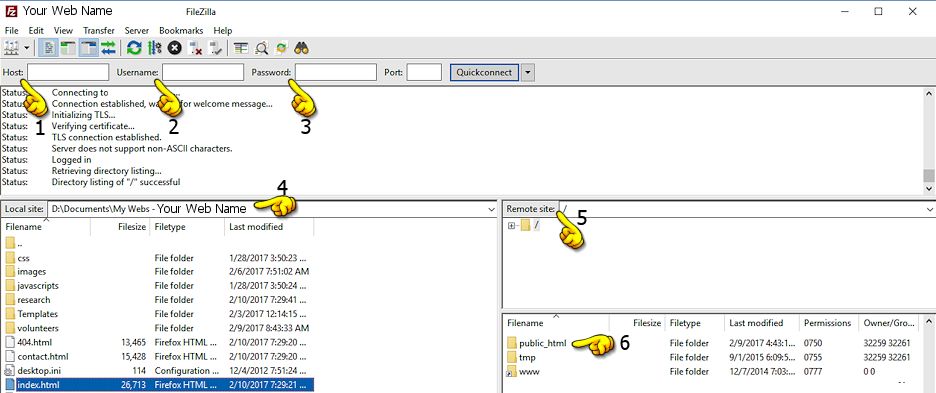
The screenshot of Filezilla shows the information that all FTPs need to access your website's server files.
1. Host - Your website's url or domain name
2. Username - The name the host uses for your website
3. Password - The password to the server files for your website
4. Local Site - Your computer files. You will navigate them to find the folder for your website
5. Remote Site - This is usually the server folder to your website, but sometimes there is a public_html folder
and an extra step will be needed.
6. public_html -- Click on this folder to open it. Your website folder may open, or there may be another list
of folders, which you will need to navigate to your website folder.
7. When your website files are listed on both sides, Local site and Remote site, you are ready to upload or
download. Highlight the file(s) you want to copy, right click and drag the files to the other side. (To download,
drag from the Remote site to the Local site. To upload, drag from the Local site to the Remote site.)
WEBSITE EDITORS
Website editors are used for designing, developing, and maintaining websites.
There is an ever-changing, wide variety from which to choose (ExpressionWeb,
Dreamweaver, WordPress, ...).
- Brackets provides information and tutorials.
They recommend upgrading to Phoenix Code. It is also available free at
github.com.
Download a PC or a Mac version.
- ExpressionWeb4 is a discontinued Microsoft editor, but it is still available free from
MajorGeeks
and free from
softonic
for PC use.
- CoffeeCup offers a free version for a PC.
- KompoZer
There are many free tutorials available at YouTube and websites, for example
GENERAL TIPS
- Learn the basics of HyperText Markup Language (HTML). No program can produce
perfect code and you will want to tweak the code in some circumstances. If there is
something you can't edit or fix in design view, looking at the code and understanding how
you can change it will make your site work better, look better, and download faster.
- What does all this code mean?
- For Search Engine Optimization (SEO), include these lines of code, in this order,
at the beginning of each page.
<head>
<meta charset="UTF-8">
<meta content="width=device-width, initial-scale=1.0" name="viewport">
<title>text goes here</title>
- Learn the basics of Cascading Style Sheets (CSS) or at least enough to make minor
changes to the look of your webpage, rather than adding HTML markup code to your pages.
- Styling Text with CSS
- Include this default image class in your CSS file
img {border: none; max-width: 100%; box-sizing: border-box;}
(there is no "dot" in front of the img code.)
-
Styling Images with CSS
- Mobile-Friendly, Responsive Website
What is it? Mobile-Friendly or Responsive Websites are those that "respond" to
different size viewports. In other words, they shrink or grow to fit the size
of the window that the viewer is using. For larger viewports, like Desktops,
the site layout expands. For smaller viewports, like cellphones, the site
collapses. Navigation of the site is also affected by the viewport size. You
can't have a 6 inch line of links across the top show up in a 2.5 inch screen
without scrolling right or left, unless the site is coded for the line of
links to do something different. That "different" usually is the code drops
down into separate lines of links.
Does It Matter? If the majority of your viewers are coming into your site from
Desktop Computers, then the short answer is, "No, it doesn't matter." If,
however, people are using other devices (laptops, cell phones, iPads, tablets,
etc.), then it does matter. People expect to see mobile-optimized sites on
their devices. If your site is not mobile-friendly, what happens? It depends
(don't you love that answer!). Some designs will shrink better than others.
Table-based designs, however; are the worst. They don't shrink well. Google
penalizes you for not having mobile-friendly, mobile-compliant websites. So to
answer the question, "Does it matter?" you have to make that decision yourself.
Can you just add a few lines of code to make it mobile-friendly? Nope. You
will have to style each separate element in your "Media Queries" portion of
your css. Is it easy? It's not too difficult, but it is very time-consuming.
Depending on the volume of changes required, updating older code may not be
worth the effort to make the website responsive to smaller viewports.
Some of the coding used for making this site mobile-friendly in the small cell phone view:
/* ===== SMALL DEVICE 01 ===== */
@media screen and (max-width: 320px) {
.wrapper {width: 90%;margin: 0 auto;}
.headerBox3a {display: none; visibility: hidden;}
.headerBox3b {float: none; width: 100%; }
.headerBox3c {float: none; width: 100%; padding-bottom: 20px; margin-top: -20px;}
.mapbox {display: none; visibility: hidden;}
/* === content box coding ==== */
.contentBox3a, .contentBox3b, .contentBox3c,
.contentBox4a, .contentBox4b, .contentBox4c, .contentBox4d
{width: 98%; margin: 0 1% 20px 1%; padding: 0; float: none;}
/* === miscellaneous coding ==== */
h1 {font-size: 1.9em; margin-top: 0;}
h2 {font-size: 1.5em;}
}
- Learn the basic usages of JavaScript (script)
- Automatic year update script:
<script type="text/javascript">
var today = new Date()
var year = today.getFullYear()
document.write(year)
</script>
- Last updated script:
<script language="Javascript">
document.write("Last Updated: " + document.lastModified +"");
</script>
- Break Out of Frames. Sometimes other sites take your pages and place them
in a "Frame" with their information on the outside. This makes it look as if
the information is on their site. You can stop that from happening without
your authorization by inserting this code above the <title> line of each of
your web pages.
<script type="text/javascript">if (window.self !=window.top)
window.top.location = window.self.location;</script>
- Learn the basics of Using Templates (dwt). Templates streamline the process of building a website,
and they make it possible to implement a consistent design across all pages of a website, providing uniform headers
and footers with an editable content area between.
These free templates were created and contributed by Marsha Bryant Holley,
SC for LAGenWeb and owner of Genealogy Web Templates.
They are designed especially for USGenWeb and set up to be used for county sites.
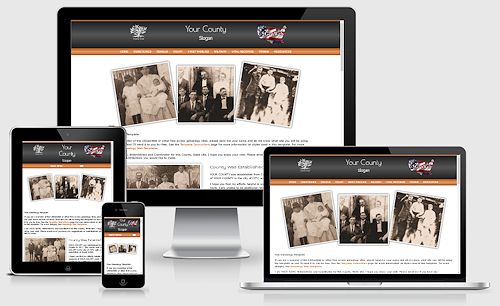
Multi-Level Drop-Down Menu
See In Action
Download Expression Web / Dreamweaver Template
Download Generic Template
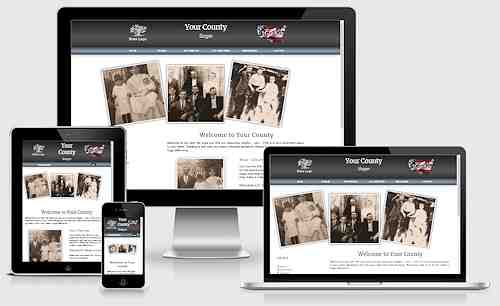
One-Level Menu and Side Links
See In Action
Download Expression Web / Dreamweaver Template
Download Generic Template
TIPS ON EDITING
- Edit sites on your computer, preview the updated pages, then upload the
updated pages to the server. Do NOT edit sites directly onto the server.
- Meta Tags: To help get your site listed in search engines and directories, add
descriptions to each page. Google is not looking at keywords any longer, so make
sure your description of the page and the content of the page match.
- Give each page an appropriate title to match the header.
- Provide "alt text" for all images. Make the alt text description for each image clear. "SMITH Family"
tells a visitor almost nothing. "John, Mary, and Jane SMITH 1901" tells a whole
lot more.
- Do NOT copy and paste from any Microsoft office application like
Word. Paste the text into notepad to remove all formatting. If you copy directly
into your web, you may get lots of formatting code you don't need.Never cut and
paste from any Microsoft office application like Word. This brings along "MSO
schema" information that can have unwanted results if it overwrites your style
sheet. Copy from Word and paste into Notepad (or other plain text editor.) Then
copy from Notepad and paste into your web editing program. You can then format
as necessary. FREE OpenOffice or LibreOffice doesn't have the same issues. You
can open a Word document there and change it to an .odt document, which strips
all of the MS coding.
- Do not drag your images into your web, use "Insert > Picture > From ....
- Use an image program to resize your images. Do not
grab the corner of the image and pull in to make the image smaller. Although the
image may appear with smaller dimensions, the actual file size is still the same
as the original and will take longer to download in all browsers.
- If you don't have an image program to edit your images, try this free service
WebResizer. You upload your image, resize/crop the image, and then
download the finished product. It's easy.
- Make sure you remove width and height attributes in "Code View" for images over
250px wide. If the page is shrinking for smaller viewports and the image dimensions
are expressly stated, the image won't shrink correctly.
Design Tips
- Keep your font choices simple but experiment with Google fonts. You can add
a bit of fun to headings, etc. Just don't overdo it. The best practice is to
keep regular text in sans-serif so it is easier to read on the screen. You can
use either serif or sans-serif fonts for headings in an appropriately larger size.
- Use upper and lower case in your content areas and use all caps sparingly for emphasis.
A paragraph using all caps is difficult to read. Don't do it!
- Limit the number of colors you use on your site and keep your color use
consistent across your site. Color is a way for people to identify things. If
your links are purple, then don't use the same color and size for text emphasis.
Web page templates commonly use 2-3 shades of the same color and one accent color.
- Use a consistent layout. If your sidebar is always on the left, keep it there.
Switching from left to right confuses visitors.
- Don't make visitors hunt for links by using obscure words or hiding your navigation.
You typically have five seconds or less to grab your readers' attention. Make it clear and
easy to see what your site is about.
- Forget the animated gifs, ticker tape text effects, and things that continue
to blink. If anything moves on your site (other than a JavaScript application
like a slideshow or carousel), it should be very subtle. Forget about the clever
mouse trails and the hopping bunny and the snow... remember the snow?
- Please don't center everything on your page. Imagine reading a book with
everything centered! It's too much.
- Make use of the Heading Tags to set off topics.
- When naming a folder or file (html, jpg, ...), don't use any spaces between
the letters or numbers. For example 'smithfamily.html' not 'Smith Family.html'
and 'SmithJohn1901.jpg' not 'Smith John 1901.jpg'
- Use font types that are found on most user's operating systems (such as
Arial) and display in an 11 or 12 pt font size. Do not use 'Fancy' fonts as they
detract from the data and may not display correctly if the user does not have
that same font on their operating system. Colored fonts on weird background
colors are very hard on the eyes.
_____
Page content reviewed and/or updated by the Advisory Board 2026 Jan
Contact Us

Contact the National Coordinator
with Project questions, suggestions, or concerns.
Contact any Web Management Team member for
usgenweb.org website questions, suggestions, or concerns.
Please include a link if your inquiry is about a specific page or Project website.